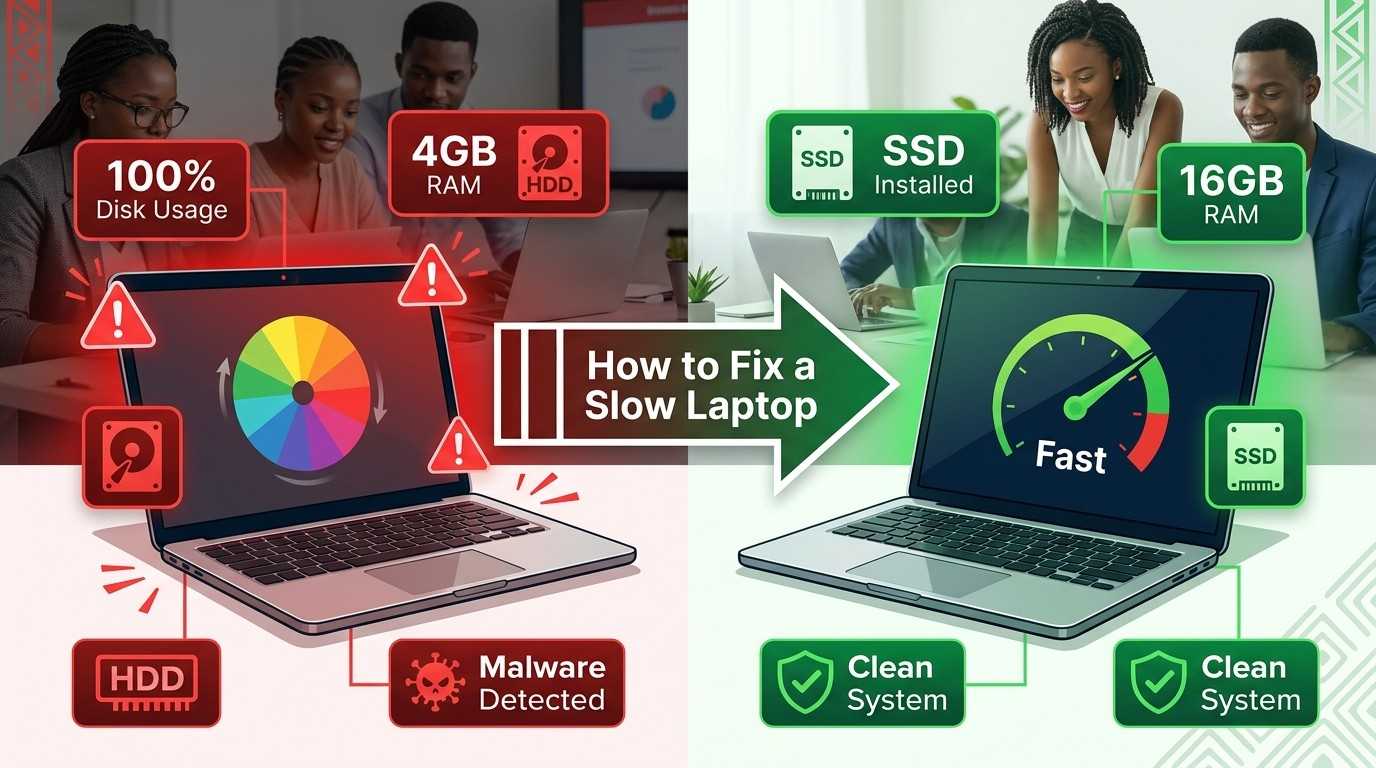
Top 10 Causes of a Slow Laptop
Before you fix anything, it helps to know what is actually slowing your laptop down. Here are the ten most common causes we see on laptops in Kenya, ranked from the easiest fix to the most serious.
Too Many Startup Programs
Many apps set themselves to open every time your laptop turns on. Each one uses memory and CPU before you even start working, which makes startup and general use feel sluggish.
Quick fix: Open Task Manager, go to the Startup tab, and disable anything you do not use every day.
High CPU Usage from Background Apps
When too many programs fight for your processor's attention at once, everything slows down, even simple tasks like opening a folder or typing in Word.
Quick fix: Check Task Manager's CPU column and close any app using a large share of CPU that you are not actively using.
High Memory (RAM) Usage
Every open app and browser tab uses a slice of your laptop's memory. Once memory fills up, Windows starts borrowing space from your slow hard drive, and everything crawls.
Quick fix: Close tabs and apps you are not using, and restart your laptop at least once a day.
Full or Nearly Full Storage
Windows needs free space to work properly. When your drive is more than 90% full, your laptop slows down noticeably because it has nowhere to store temporary files.
Quick fix: Delete old downloads, empty the Recycle Bin, and run Storage Sense (Settings > System > Storage).
An Old Hard Drive (HDD) Instead of an SSD
A spinning hard drive (HDD) is the single biggest reason older laptops feel slow. It can take several minutes just to open Windows, even on a laptop with a strong processor.
Quick fix: Upgrade to an SSD. It is the single biggest speed boost you can give an older laptop.
Malware and Viruses
Some malware quietly runs in the background, using your CPU and internet connection without you knowing. This is a very common, and often overlooked, cause of a slow laptop.
Quick fix: Run a full scan using Windows Security (built into Windows) or a trusted antivirus tool.
Too Many Browser Tabs and Extensions
Web browsers are one of the hungriest apps on any laptop. Ten or more open tabs, plus several extensions, can quietly eat several gigabytes of memory.
Quick fix: Close tabs you are not reading, and remove browser extensions you no longer use.
Windows Update Running in the Background
Right after a Windows update, your laptop may keep installing files in the background for a few hours. This shows up as high disk usage and a slow, laggy feel.
Quick fix: Leave the laptop plugged in and idle for an hour so the update can finish, then restart it.
Dust Buildup and Overheating
When dust blocks the fan and vents, your laptop overheats. Modern processors automatically slow themselves down to avoid damage when they get too hot, which you feel as lag.
Quick fix: Have the fan and vents professionally cleaned, especially if it is loud or hot to the touch.
Not Enough RAM for Your Workload
If your laptop only has 4GB of RAM and you use it for many tabs, Zoom calls, or office work at the same time, it will always feel slow, no matter what you clean up.
Quick fix: Upgrade to 8GB or 16GB of RAM if your laptop model supports it.
Why Is My Laptop Slow Even With an SSD?
An SSD makes a laptop much faster, but it does not fix every problem. If your laptop is still slow with an SSD installed, the cause is usually something else entirely: too little RAM, a weak or old processor, malware, an overloaded startup list, or a storage drive that is almost full. SSDs are also not all equal — a small or older SSD can still slow down once it gets close to full.
Check Task Manager first. If your disk usage is low but CPU or memory usage is high, your SSD is not the problem. Look at your RAM amount and the number of open apps instead.
Why Is My Laptop Slow After a Windows Update?
It is completely normal for a laptop to feel slower right after a Windows update. Windows quietly reindexes your files, finishes installing update components, and reconfigures settings in the background. This can use high CPU and disk usage for a few hours.
What to do: Leave your laptop plugged in and switched on for one to two hours after an update. Avoid opening heavy apps during this time. If it is still slow after a full day, restart it and check Task Manager for a stuck update process.
Laptop Slow When Plugged In
If your laptop feels slow only while charging, the cause is often the charger or power settings, not the laptop itself. A weak, non-original, or faulty charger may not supply enough power, forcing your laptop to reduce performance to protect the battery.
- Try the original charger, or a genuine replacement rated for your laptop's wattage.
- Check your Power Mode is not set to "Battery Saver" while plugged in.
- Update your battery and chipset drivers from the manufacturer's website.
Laptop Slow on Battery Power
Many laptops automatically slow down the processor when unplugged to save battery life. This is normal and by design, not a fault. However, if the slowdown feels extreme, your battery health may have degraded, which can cause the laptop to throttle performance more aggressively than it should.
Quick fix: Go to Settings > System > Power and set your Power Mode to "Best Performance" while on battery, and check your battery health report if your laptop is more than three years old.
High CPU Usage Explained
Your CPU (processor) is your laptop's brain. High CPU usage means too many programs are asking your processor to work at once, so everything slows down, including simple tasks like typing or scrolling.
| CPU Usage | What It Means |
|---|---|
| Below 30% | Normal, healthy use |
| 30% – 70% | Busy, but usually fine for one task at a time |
| Above 80% (constant) | Overloaded — close apps or check for malware |
How to check: Press Ctrl + Shift + Esc to open Task Manager, then click the CPU column header to sort apps by usage.
High Memory Usage Explained
Memory (RAM) is short-term storage your laptop uses while apps are open. High memory usage means your apps and browser tabs are using almost all of your available RAM, so Windows has to slow down and "swap" data to your much slower hard drive.
If your Task Manager shows memory usage constantly above 85–90%, your laptop needs either fewer open apps or a RAM upgrade.
High Disk Usage Explained
Disk usage shows how hard your storage drive is working. If Task Manager shows disk usage stuck at or near 100% even when you are not doing much, common causes include a failing hard drive, a Windows update still installing, malware, or an old HDD that simply cannot keep up with modern software.
Warning sign: If disk usage stays at 100% for a long time and your laptop still uses an HDD, this is one of the clearest signs it is time to upgrade to an SSD.
How to Reduce Background Apps
Background apps run quietly, using CPU, memory, and even your internet connection without you noticing. Reducing them is one of the fastest ways to speed up an old laptop.
- Go to Settings > Apps > Installed Apps and uninstall anything you no longer use.
- Go to Settings > Privacy & Security > Background Apps and turn off permissions for apps you rarely open.
- In Task Manager's Startup tab, disable anything you do not need running automatically.
- Close browser tabs and desktop apps you are not actively using right now.
Best Ways to Speed Up Windows 11
Windows 11 has several built-in tools that can make an older laptop feel noticeably faster, at no cost.
- Turn on Storage Sense to automatically clear temporary files and the Recycle Bin.
- Disable visual effects — search "Adjust the appearance and performance of Windows" and choose "Adjust for best performance."
- Turn off Startup apps in Settings > Apps > Startup.
- Keep Windows updated — updates often include speed and stability fixes.
- Run Disk Cleanup and clear old Windows Update files that pile up over time.
- Disable search indexing on drives you rarely search, if you use an HDD.
How to Improve Laptop Performance Without Buying a New One
You do not always need a brand-new laptop to fix slow performance. In Kenya, most performance problems can be solved for a fraction of the cost of a new machine.
- Upgrade to an SSD if your laptop still has an HDD — this is the single biggest upgrade for the price.
- Add more RAM if your laptop supports it and currently has 4GB or less.
- Clean the fan and vents to fix overheating-related slowdowns.
- Reinstall Windows fresh if the laptop has years of clutter and has never been wiped.
- Replace an old, worn battery if power-saving throttling is the real cause.
If your laptop is genuinely too old to keep up — for example, it still runs an 8th Gen or older processor with 4GB RAM — it may be more cost-effective to move to an affordable, well-specced refurbished laptop than to keep upgrading an outdated machine.
Why Is My Laptop Using So Much RAM?
Your laptop uses more RAM than you expect because modern apps, especially web browsers, keep data ready in memory so pages load faster. Every open tab, extension, and background app adds up quickly. Common RAM-hungry culprits include:
- Web browsers with many open tabs
- Video calling apps like Zoom or Teams running in the background
- Cloud sync tools (Google Drive, OneDrive, Dropbox)
- Antivirus programs scanning in the background
- Design or editing software left open but unused
Best Windows Performance Settings
A few settings changes can make a real difference without spending any money:
| Setting | Where to Find It | Effect |
|---|---|---|
| Power Mode | Settings > System > Power | Set to "Best Performance" |
| Visual Effects | Search "Performance Options" | Choose "Adjust for best performance" |
| Startup Apps | Settings > Apps > Startup | Disable unused apps |
| Storage Sense | Settings > System > Storage | Auto-clears temp files |
| Background Apps | Settings > Privacy & Security | Turn off for unused apps |
Startup Programs You Should Disable
Not every startup program deserves a spot when your laptop turns on. Here are common ones that are safe to disable for most people:
- Chat or messaging apps you do not use daily (Skype, Discord, etc.)
- Cloud storage sync tools you rarely need instantly
- Printer or scanner software you only use occasionally
- Manufacturer "helper" or update-checker apps
- Media players and download managers
Leave these alone: your antivirus software and your graphics driver utility. These protect and support your laptop and should keep running.
Temporary Files Explained
Temporary files are small files Windows and your apps create to help programs run smoothly — things like browser cache, installer leftovers, and old update files. They are meant to be deleted, but they build up over time and can quietly fill several gigabytes of space, slowing your laptop down.
How to clear them: Search "Disk Cleanup" in the Start menu, select your main drive, tick temporary files and old Windows updates, then click OK. On Windows 11, Storage Sense can do this automatically on a schedule.
Fix Cost Guide (Ksh) — Nairobi Reference Prices
If free fixes are not enough, here is roughly what common laptop speed upgrades cost in Nairobi. Always confirm exact pricing with your technician, as it depends on your laptop model.
| Fix | Typical Cost (Ksh) | Time Needed |
|---|---|---|
| Full malware scan and cleanup | Free – Ksh 1,000 | 15–30 minutes |
| Fan and vent dust cleaning | Ksh 1,000 – 1,500 | 30 minutes |
| Windows reinstall (fresh setup) | Ksh 1,500 – 2,500 | 1–2 hours |
| RAM upgrade (8GB module) | Ksh 2,500 – 4,500 | 20–30 minutes |
| SSD upgrade (256GB – 512GB) | Ksh 3,500 – 7,000 | 1–2 hours |
| Battery replacement | Ksh 3,000 – 6,000 | 30–45 minutes |
| Full diagnostic check | Ksh 500 – 1,000 | 20 minutes |
⚠️ Prices listed are general Nairobi reference estimates and may change. WhatsApp 0714 701 814 for an exact quote or to browse ready-upgraded laptops.
Frequently Asked Questions
Why is my laptop slow even with an SSD?
An SSD fixes disk speed, but not RAM shortages, malware, overheating, or an overloaded startup list. Check Task Manager to see whether CPU or memory, not disk, is your real bottleneck.
Why is my laptop slow after a Windows update?
Windows keeps finishing background tasks for a few hours after an update, which raises CPU and disk usage temporarily. Leave it plugged in and idle, and it should return to normal within a day.
Why does my laptop get slow when I plug it in to charge?
This is usually caused by a weak or non-original charger, or a Power Mode set to Battery Saver. Try the original charger and set Power Mode to Best Performance.
Why is my laptop slower on battery than when plugged in?
Most laptops automatically reduce processor speed on battery to save power. This is normal, but a very old or worn battery can make the slowdown feel more extreme than it should.
How do I know if high CPU, RAM, or disk usage is causing the slowdown?
Open Task Manager (Ctrl + Shift + Esc) and check the CPU, Memory, and Disk columns. Whichever one is constantly near 100% is your main bottleneck.
Is it safe to disable all my startup programs?
No. Keep your antivirus and graphics driver utilities enabled. It is safe to disable chat apps, cloud sync tools, printer helpers, and manufacturer update-checkers you rarely use.
Will clearing temporary files delete my personal files?
No. Disk Cleanup and Storage Sense only remove system-generated temporary files, caches, and old update leftovers. Your documents, photos, and personal files are never touched.
How much RAM do I need so my laptop does not feel slow?
8GB is the practical minimum for everyday multitasking in 2026. If you regularly use design tools, many tabs, or video calls at once, aim for 16GB.
Should I upgrade my laptop or buy a new one?
If your laptop has a Core i5 or Ryzen 5 processor (10th Gen or newer) but feels slow, an SSD and RAM upgrade is usually far cheaper than buying new. Only very old, low-spec machines are worth replacing.