 Ke Offers
Why Is My Laptop So Hot?
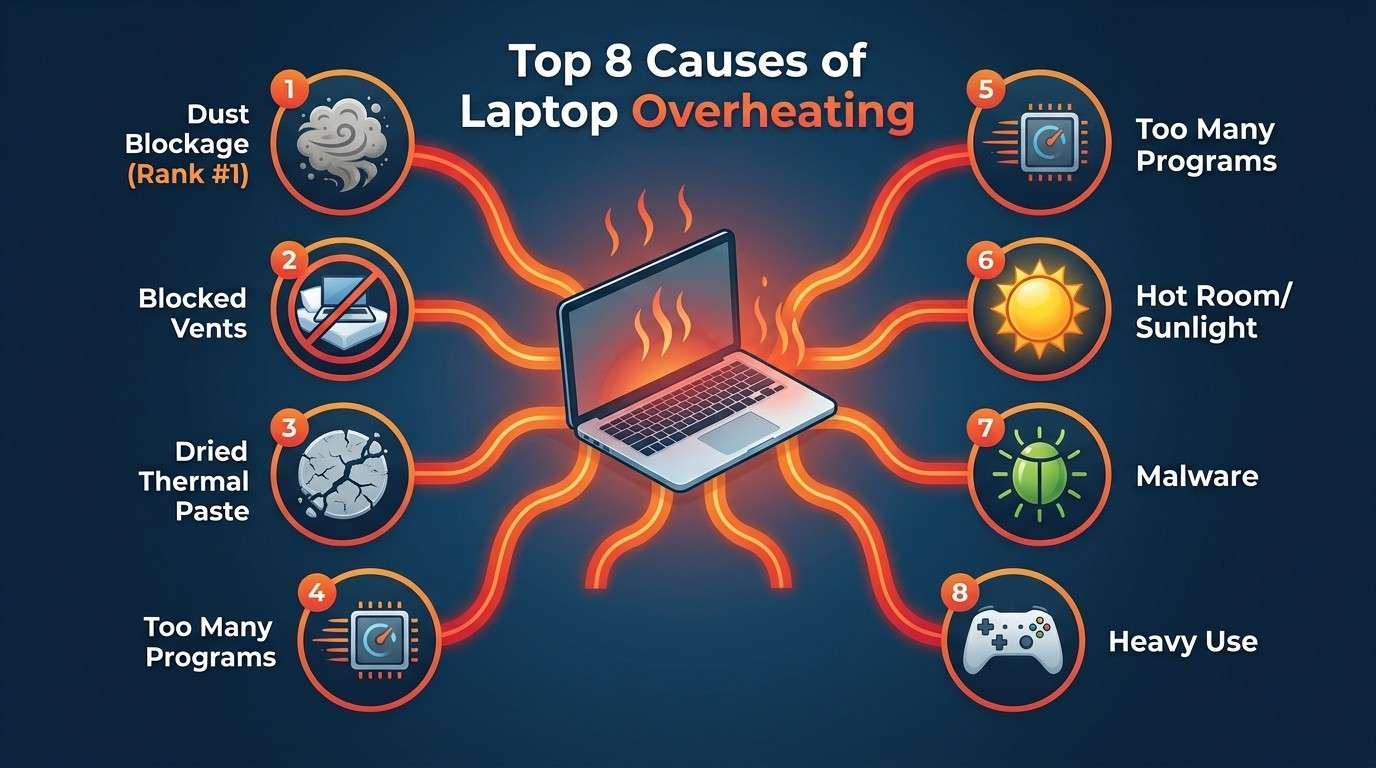
A laptop gets hot when it makes more heat than its fan and vents can carry away. Inside every laptop, the processor and graphics chip make heat all the time, and a small fan blows that heat out through narrow vents. When something blocks this system or forces the chip to work harder than normal, the laptop heats up fast. Here are the most common causes, ranked from most likely to least likely.
Dust Blocking the Fan and Vents
Dust builds up inside the fan and heat sink over time, especially in dusty Nairobi streets and matatu rides. This dust acts like a blanket, trapping heat inside.
Blocked Air Vents
Using your laptop on a bed, sofa, or your lap covers the bottom vents completely, so hot air has nowhere to escape.
Dried-Out Thermal Paste
Thermal paste carries heat away from the processor. After 3–5 years, it dries up and stops working well, so heat gets trapped right at the source.
Too Many Programs Running
Background apps, too many browser tabs, and hidden startup programs all keep the processor busy, which makes it produce more heat than it should.
Heavy Use: Gaming or Video Editing
Gaming, video editing, and 3D rendering push the processor and graphics chip to their limit for long stretches, generating a lot of heat.
Hot Room or Direct Sunlight
A laptop working next to a sunny window or in a room without airflow starts hotter than normal, so it overheats faster under load.
Malware or Virus Activity
Some malware runs hidden tasks in the background nonstop, which keeps the processor working hard even when you are not doing anything.
A Worn-Out or Broken Fan
Fans wear out after years of spinning. A weak, noisy, or silent fan cannot move enough air to keep the laptop cool.
Laptop Fan Running Constantly
If your laptop fan never stops, even when you are just typing or browsing, that is a clear warning sign of laptop overheating. A fan that runs at full speed all the time is working overtime because it cannot bring the temperature down. Left alone, this wears the fan out faster and stresses other parts too.
Common reasons your fan will not stop include a dusty fan blade, a laptop placed on a soft surface, too many background programs, a browser with dozens of open tabs, or a cooling system that is simply getting old. Start by checking Task Manager (on Windows, press Ctrl + Shift + Esc) to see which program is using the most CPU, then close anything you are not using.
Laptop Shuts Down Due to Heat
When a laptop gets too hot inside, it can shut down suddenly without warning, even in the middle of typing a document. This is called thermal shutdown, and it is actually a safety feature, not a fault. Your laptop is built to switch off on its own before extreme heat damages the processor or motherboard permanently.
To stop random shutdowns, clean the fan and vents first, then use a cooling pad during heavy tasks, and avoid using the laptop on soft surfaces. If shutdowns continue after cleaning, the thermal paste or fan likely needs replacing.
Signs Your Laptop Cooling System Is Failing
- Loud, constant fan noise even during light tasks like browsing or typing.
- Hot air barely coming out of the vents, even though the fan sounds like it is working hard.
- The bottom or keyboard area feels very hot to the touch within minutes of turning on.
- Random shutdowns or restarts that happen more often during hot afternoons or heavy use.
- Slower performance as the processor lowers its own speed to avoid overheating (this is called thermal throttling).
- Burning or dusty smell from the vents, which often means dust has been trapped for a long time.
If you notice two or more of these signs, it is time for a proper clean or a visit to a laptop repair technician before the heat causes lasting damage.
How to Reduce Laptop Temperature
Here is a step-by-step way to bring your laptop's temperature down, starting with the easiest and cheapest fixes first.
- Clean the vents and fan. Use a can of compressed air to blow dust out of the side and bottom vents.
- Move to a hard, flat surface. A desk or table lets air flow freely under the laptop; a bed or lap blocks it.
- Close unused programs and tabs. Fewer running tasks means less heat from the processor.
- Check your power settings. On Windows, switching from "Best Performance" to "Balanced" reduces heat with almost no downside for everyday use.
- Use a cooling pad. An external fan pad pulls extra heat away, especially during gaming or video calls.
- Update your drivers and BIOS. Manufacturers often release fixes that improve fan and power behaviour.
- Replace old thermal paste. If the laptop is 3+ years old and still runs hot after cleaning, this is usually the real fix.
How to Improve Airflow Around Your Laptop
Even a perfectly clean laptop will overheat if air cannot move around it. Good airflow is one of the simplest ways to prevent laptop overheating every single day.
- Place the laptop on a hard, raised surface, never directly on a bed, sofa, carpet, or your lap.
- Leave at least 5–8 cm of open space around the side and back vents.
- Use a laptop stand or cooling pad to lift the bottom off the desk.
- Avoid working in direct sunlight or right next to a heater.
- Keep the room ventilated; a fan or open window nearby helps a lot on hot days.
- Never cover the vents with papers, bags, or laptop sleeves while it is switched on.
Best Cooling Pads
A good cooling pad sits under your laptop and uses extra fans to pull heat away faster. Prices in Nairobi typically range from about Ksh 1,200 for a basic single-fan pad to Ksh 3,500 for a larger pad with multiple fans and adjustable height. Look for a pad with at least two fans, a USB pass-through port, and a stand angle that raises the back of the laptop for better typing comfort.
Basic Single-Fan Cooling Pad
Ksh 1,200 – 1,800A simple, affordable option that fits most 14–15.6 inch laptops. Good for everyday use like browsing, typing, and video calls.
📲 Ask About This Cooling PadMulti-Fan RGB Cooling Pad
Ksh 2,300 – 2,900Best for gaming and video editing, with 4–5 fans and adjustable stand height for stronger, more even cooling.
📲 Ask About This Cooling PadLarge 17-Inch Cooling Pad
Ksh 3,000 – 3,500Built for bigger gaming and workstation laptops, with a wide base, metal mesh top, and strong airflow across the whole laptop body.
📲 Ask About This Cooling PadPrices are estimates for the Nairobi market and may vary by shop and stock. Prices are valid while stock lasts.
Should You Replace Thermal Paste?
Thermal paste is a thin layer of material between the processor and its heat sink. It helps heat move away from the chip quickly. Over 3 to 5 years, this paste dries out, cracks, and stops doing its job well, which is one of the most overlooked causes of laptop overheating in older laptops.
| Situation | Replace Thermal Paste? | Typical Cost (Nairobi) |
|---|---|---|
| Laptop is under 2 years old | No, not usually needed | — |
| 3–5 years old, still runs hot after cleaning | Yes, strongly recommended | Ksh 1,500 – 2,500 |
| 5+ years old and used daily | Yes | Ksh 1,500 – 3,500 |
| Laptop shuts down often from heat | Yes, check urgently | Ksh 1,500 – 3,500 |
This is not usually a DIY job on most laptops, since it means opening the case and handling delicate parts. A trained laptop technician can do it safely in under an hour.
How Often Should You Clean Laptop Fans?
| Usage Pattern | Recommended Cleaning Frequency |
|---|---|
| Everyday use in a normal home or office | Every 4–6 months |
| Daily use in a dusty area or on the floor | Every 2–3 months |
| Heavy gaming or video editing daily | Every 2–3 months |
| Light, occasional use | Every 6–8 months |
You can clean the outer vents yourself with a soft brush and compressed air every month or two. A full internal clean, where the technician opens the laptop and cleans the fan blades directly, should follow the schedule above.
Why Gaming Makes Your Laptop Hot
Gaming makes a laptop hot because it forces the processor and graphics chip to work at nearly full power for long, continuous sessions. Unlike browsing or typing, where the chip rests often, a game keeps both chips busy the entire time you play, so they produce far more heat than the small fans inside a laptop were designed to remove quickly.
Laptops built for gaming come with bigger fans and vents for this reason, but even those still benefit from a cooling pad, a hard flat surface, and regular fan cleaning during long gaming sessions.
Does Heat Damage Laptop Batteries?
Yes, heat is one of the biggest enemies of a laptop battery. Every time a lithium battery gets hot, it ages a little faster, meaning it holds less charge over time. A laptop that regularly overheats may see its battery life drop months or years earlier than it should.
- Avoid charging the laptop while it is also gaming or doing heavy work, since both add heat at once.
- Keep the laptop out of direct sun and hot cars.
- Do not block vents while charging.
- In extreme cases, prolonged heat can cause a battery to swell, which is a safety risk and needs immediate replacement.
Best Practices to Prevent Overheating
Preventing laptop overheating is much easier and cheaper than fixing the damage it causes. Build these small habits into your routine:
- Use a hard, flat surface, never a bed or lap
- Clean vents every 3–6 months
- Close unused tabs and programs
- Use a cooling pad for gaming or editing
- Keep the laptop out of direct sunlight
- Avoid charging during heavy, long sessions
- Update drivers and BIOS regularly
- Replace thermal paste every 3–5 years
- Run regular malware scans
- Give the laptop rest breaks during long tasks
Frequently Asked Questions
Why is my laptop so hot?
Your laptop gets hot mainly because dust is blocking the fan and vents, airflow is blocked by a soft surface, the thermal paste has dried out, too many programs are running, or you are gaming or doing heavy work for a long time.
Why is my laptop fan running constantly?
A fan that never stops is working overtime to cool a hot processor. This usually points to dust build-up, blocked vents, too many background programs, an aging cooling system, or a laptop placed on a soft surface.
Can laptop overheating cause it to shut down?
Yes. When internal temperatures reach a dangerous level, the laptop shuts down on its own to protect the processor and other parts from permanent damage. This is called thermal shutdown.
How can I reduce my laptop's temperature?
Clean the vents and fan, use a hard flat surface, close unused programs and browser tabs, use a cooling pad, keep the laptop out of direct sun, and check your power and performance settings.
Should I replace the thermal paste on my laptop?
If your laptop is more than 3 to 4 years old and still runs hot after cleaning the fan, yes, replacing the thermal paste usually helps a lot, since old paste dries out and stops transferring heat well.
How often should I clean my laptop fans?
Clean your laptop fan and vents every 3 to 6 months if you use it daily, or every 2 to 3 months if you live or work in a dusty area.
Does heat damage laptop batteries?
Yes. Constant heat wears down a laptop battery faster, making it hold less charge over time and, in extreme cases, causing it to swell or fail early.
Why does gaming make my laptop hot?
Gaming pushes the processor and graphics card to work at full power for a long time, which produces a lot of heat that the small fans inside a laptop must work hard to remove.
Still Dealing With Laptop Overheating?
If cleaning and cooling pads have not solved it, your laptop may need a proper inspection, a fan replacement, or a fresh coat of thermal paste. Chat with our team on WhatsApp and we will help you sort it out or point you to a reliable, well-priced laptop.
📲 WhatsApp Us: 0714 701 814