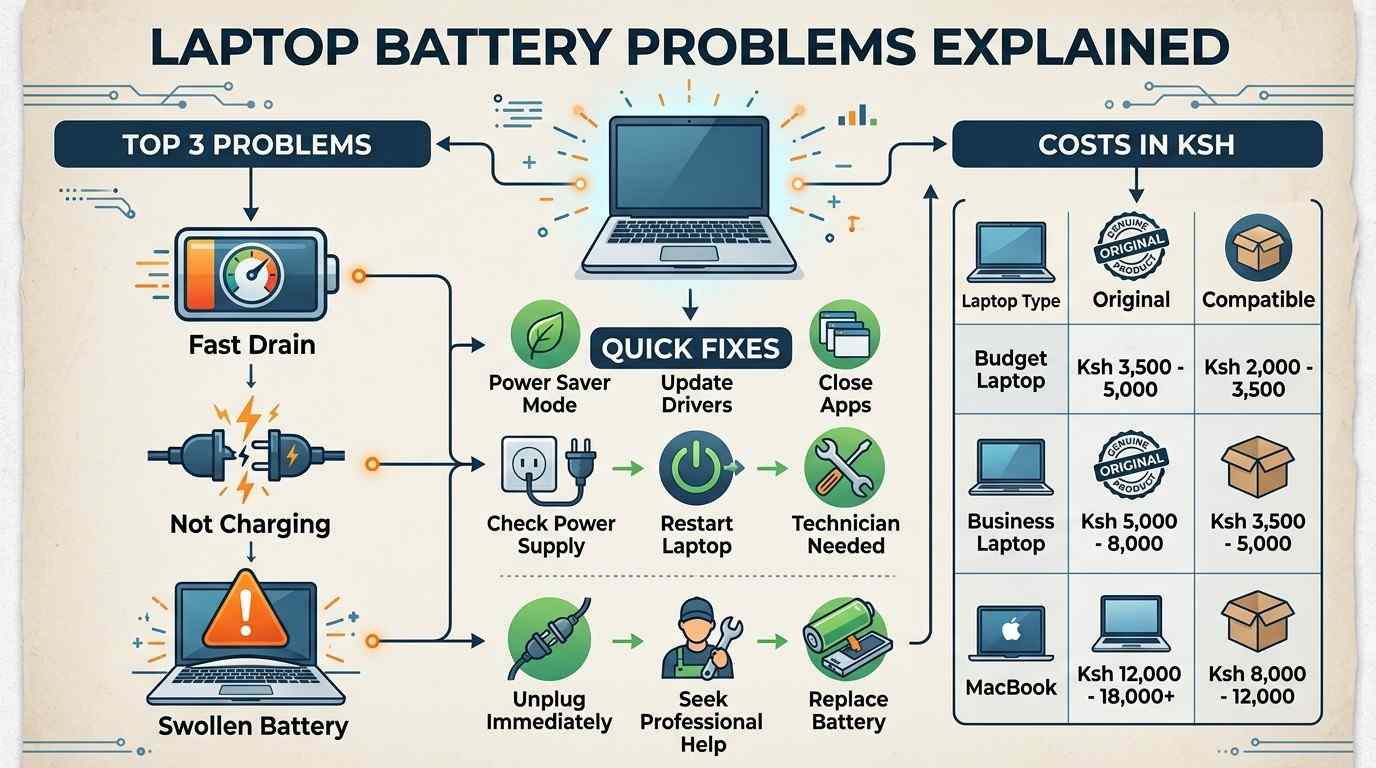
Laptop battery problems are one of the most common reasons Kenyans bring their laptops in for repair, and the good news is that most of them are simple to understand once you know what is going on inside the battery. A laptop battery is not a mystery box. It is a pack of lithium cells that slowly wears out every time you charge and use it, and the way you charge it can make that wear happen faster or slower.
In this guide, we break down every major battery problem you might see — from a battery that drains in an hour, to one that will not charge at all, to a battery that has started to swell. For each one, we explain what is really happening, what you can try at home, and when it is time to call in a technician or buy a new battery.
Laptop battery problems are usually caused by one of four things: a battery that has naturally aged and lost capacity, background apps and bright screens draining power too fast, a faulty charger or charging port, or damaged battery cells. Most fixes involve adjusting power settings, calibrating the battery, or replacing a worn-out pack for around Ksh 2,500 to Ksh 16,000 in Kenya.
1. Laptop Battery Drains Too Fast
If your laptop battery drops from 100% to 10% in under two hours, something is pulling more power than it should. Here are the most common causes, ranked from most likely to least likely.
Aged battery cells Needs Replacement
Every battery loses a little capacity each time it is charged. After two or three years, a battery that once lasted 6 hours might only last 2.
Too many background apps Easy Fix
Browser tabs, cloud sync apps, and antivirus scans running in the background quietly drain power even when you are not using them.
Screen brightness set too high Easy Fix
The screen is usually the single biggest power user on any laptop. Full brightness can cut your battery life by a third or more.
Wrong power plan selected Easy Fix
Windows "Best Performance" mode and macOS "High Power" mode both use more energy than a balanced or power-saving setting.
Outdated drivers or OS Moderate
Old graphics or chipset drivers sometimes stop your laptop from properly powering down parts it is not using.
Faulty battery cell Needs Technician
If one cell inside the battery pack has failed, the whole battery can drain unevenly and much faster than normal, even when new.
For more general slowdowns and performance problems that are not battery-related, see our complete performance guide for slow laptops.
2. Laptop Not Charging
A laptop that shows "plugged in, not charging" or does not charge at all usually points to one of three places: the charger, the port, or the battery itself.
- Check the charger and cable first. Try a different wall socket, and inspect the cable for cuts, bends, or a loose connector tip.
- Look at the charging port. Dust, bent pins, or a wobbly port are common in Nairobi's dusty conditions and can stop a full connection.
- Restart the laptop with the charger plugged in. Sometimes the battery controller software simply needs a reset.
- Update or reinstall the battery driver in Windows Device Manager under "Batteries."
- Rule out a dead battery. If the laptop runs fine on the charger but the battery percentage never moves, the battery has likely reached the end of its life.
3. Laptop Only Works While Plugged In
This is one step worse than slow charging — the laptop switches off the second you unplug it. This almost always means the battery can no longer hold any usable charge, even though it may still show a percentage on screen.
It can also happen if the battery has been fully disconnected internally (common after a repair) or if the battery has failed a safety check and been disabled by the laptop's firmware. In both cases, a replacement battery is the only real fix — running a laptop permanently on mains power also puts extra strain on the charging circuit over time.
4. Battery Stops Charging at 80%
If your laptop battery always stops at 80% and will not go higher, do not panic — this is very often a deliberate feature, not a fault. Many laptops from Lenovo (Vantage), Dell (Power Manager), HP (Support Assistant), and Apple (Optimized Battery Charging) include a setting that intentionally caps charging at 80% to slow down long-term wear.
- Check for a "battery conservation" or "charge threshold" setting in your manufacturer's software and turn it off if you want a full 100% charge.
- If there is no such setting and it still stops at 80%, the battery may be reporting a false "full" reading due to age, which is a sign it needs calibration or replacement.
5. Battery Health Explained
"Battery health" is simply a comparison between how much charge your battery can hold right now versus how much it could hold when it was brand new. A battery at 100% health can store its full original capacity. A battery at 60% health can only store 60% of that, even when charged to "100%" on the screen.
| Health % | What it means |
|---|---|
| 90–100% | Excellent — near-new performance |
| 70–89% | Good — normal wear, still reliable |
| 50–69% | Fair — noticeably shorter runtime |
| Below 50% | Poor — replacement strongly recommended |
Health drops naturally with age and use — it is not usually a sign of a fault unless it falls sharply in a short period of time.
6. Battery Calibration Guide
Calibrating a battery does not add capacity back — it simply resets the laptop's internal "fuel gauge" so the percentage shown on screen matches reality. This helps with problems like a laptop that suddenly shuts down at 20% instead of 0%.
- Charge the laptop to 100% and let it sit plugged in for two more hours.
- Unplug the charger and use the laptop normally until it shuts down on its own from low battery.
- Leave it off and unplugged for at least five hours to fully settle.
- Plug it back in and charge it to 100% without interruption, ideally with the laptop off or asleep.
Do this once every few months at most — frequent full discharges actually add wear, so calibration is a diagnostic tool, not a daily habit.
7. How to Extend Laptop Battery Life
- Keep it cool. Heat is the single biggest enemy of battery lifespan — avoid using your laptop on a bed, sofa, or lap for long stretches.
- Avoid charging to 100% every single time. Keeping the battery between roughly 20% and 80% reduces long-term stress on the cells.
- Turn on your manufacturer's battery-saving mode for daily use if you mostly work while plugged in.
- Lower your screen brightness and turn off keyboard backlighting when you do not need it.
- Disconnect unused USB devices — external drives and mice draw power even when idle.
- Update your operating system regularly — power management improvements are a regular part of Windows and macOS updates.
8. Laptop Battery Swollen: What Should You Do?
- Power the laptop off completely and unplug the charger.
- Do not press, bend, puncture, or try to "pop" the swollen area.
- Place the laptop on a hard, fireproof surface such as tile or concrete, away from anything flammable.
- Do not attempt to remove the battery yourself unless you are trained to do so.
- Take it to a qualified laptop technician for safe removal and disposal, and a battery replacement.
Swelling happens when internal gases build up from age, overcharging with a faulty charger, or a manufacturing fault. It is never something to ignore or keep using "for now."
9. Original vs Compatible Laptop Batteries
When it is time to replace a battery in Kenya, you will usually be offered two choices: an original manufacturer (OEM) battery, or a compatible third-party battery.
| Factor | Original (OEM) | Compatible |
|---|---|---|
| Price | Higher, from about Ksh 7,000 | Lower, from about Ksh 2,500 |
| Fit & safety | Exact fit, tested by the manufacturer | Usually fits well, quality varies by brand |
| Lifespan | Generally longer, more consistent cells | Can be shorter with low-quality cells |
| Warranty | Often backed by longer warranty | Shorter or no warranty on cheap options |
| Best for | Business laptops, daily heavy use | Budget laptops, occasional use |
A compatible battery from a reputable seller is a reasonable choice for light use, but always buy from a seller who tests the battery before you leave — cheap, unbranded cells are the most common cause of repeat battery problems.
10. How Long Should a Laptop Battery Last?
Most laptop batteries last between two and four years of regular use, or about 300 to 1,000 full charge cycles, before their capacity drops low enough to need replacing. A "charge cycle" is one full 0% to 100% charge, even if it happens across several days.
How you treat the battery matters as much as the calendar. A battery kept cool, charged moderately, and not left fully depleted for long periods can comfortably outlast one that is charged to 100% every night and runs hot under a pile of browser tabs.
11. Can You Leave Your Laptop Plugged In Overnight?
Yes, you can — modern laptops are designed to stop drawing charge once the battery reaches 100%, so they will not "overcharge" in the way old electronics sometimes did. That part is safe.
The real downside is heat and time spent sitting at a full charge, both of which slowly age the battery faster than normal use. If your laptop supports a charge-limit or battery-conservation feature, turning it on for overnight charging is a smart middle ground.
12. Best Charging Habits for Laptop Batteries
- Charge in shorter top-ups rather than always running the battery down to empty.
- Avoid extreme heat or cold while charging — a hot car or a spot in direct sun both stress the battery.
- Use the charger that came with the laptop, or a certified replacement with the correct wattage.
- Unplug once you are near 100% if you plan to work plugged in for the rest of the day anyway.
- Let the battery run down to around 20–30% occasionally rather than always topping up from 90%.
13. Battery Replacement Cost in Kenya
Battery replacement cost in Kenya depends mainly on your laptop's brand and whether you choose an original or compatible battery. Here is what to expect, fitting included.
| Laptop type | Compatible battery | Original (OEM) battery |
|---|---|---|
| Budget laptops (Celeron, entry Core i3) | Ksh 2,500 – 4,000 | Ksh 5,500 – 8,000 |
| Mid-range business laptops (Core i5/i7) | Ksh 3,500 – 6,000 | Ksh 7,000 – 10,500 |
| Premium/workstation laptops | Ksh 5,000 – 7,500 | Ksh 9,000 – 13,000 |
| MacBook Air / Pro | Ksh 6,500 – 9,000 | Ksh 11,000 – 16,000 |
Prices are valid while stock lasts and can vary by battery cell grade. If your battery is showing any of the problems above and you are unsure whether it can be repaired, replaced, or is a sign to upgrade the whole machine, WhatsApp us on 0714 701 814 for a free diagnosis.
📲 Ask About Battery Replacement14. How to Check Battery Health in Windows
- Search for "Command Prompt" in the Start menu, right-click it, and choose "Run as administrator."
- Type
powercfg /batteryreportand press Enter. - Windows will save an HTML file and show you the exact folder location in the window.
- Open that file in your browser and look at "Design Capacity" versus "Full Charge Capacity" — the closer these two numbers are, the healthier your battery is.
For the full official walkthrough, see Microsoft's own guide on caring for your battery in Windows.
15. How to Check Battery Cycles on a MacBook
- Hold the Option key and click the Apple menu in the top-left corner.
- Choose "System Information" from the menu that appears.
- In the Hardware section on the left, click "Power."
- Look under "Battery Information" for "Cycle Count" and "Condition."
Apple's guidance and the maximum cycle count for your exact MacBook model are listed on Apple's official support page on determining battery cycle count for Mac laptops.
Quick Symptom Finder
Not sure which section applies to you? Search your symptom below.
Frequently Asked Questions
Why does my laptop battery drain so fast?
The most common reasons are an aging battery that has lost capacity, too many background apps and browser tabs running, a bright screen, and power settings that are not set to a battery-saving mode.
Is it bad to leave my laptop plugged in all the time?
Modern laptops stop charging once the battery hits 100 percent, so leaving it plugged in will not overcharge it. But keeping it at 100 percent and warm for long periods slowly wears the battery down faster than normal use.
How much does it cost to replace a laptop battery in Kenya?
A compatible replacement battery in Kenya usually costs between Ksh 2,500 and Ksh 6,500 for budget and mid-range laptops, while original manufacturer batteries for business or premium laptops and MacBooks range from about Ksh 7,000 to Ksh 16,000, including fitting.
What should I do if my laptop battery is swollen?
Stop using the laptop right away, unplug the charger, avoid pressing or puncturing the swollen area, place the laptop on a fireproof surface away from anything flammable, and take it to a qualified technician for safe removal and replacement.
How long should a laptop battery last before it needs replacing?
Most laptop batteries last two to four years, or roughly 300 to 1,000 full charge cycles, before their capacity drops enough to need a replacement. Heat, constant full charges, and cheap cells all shorten this lifespan.