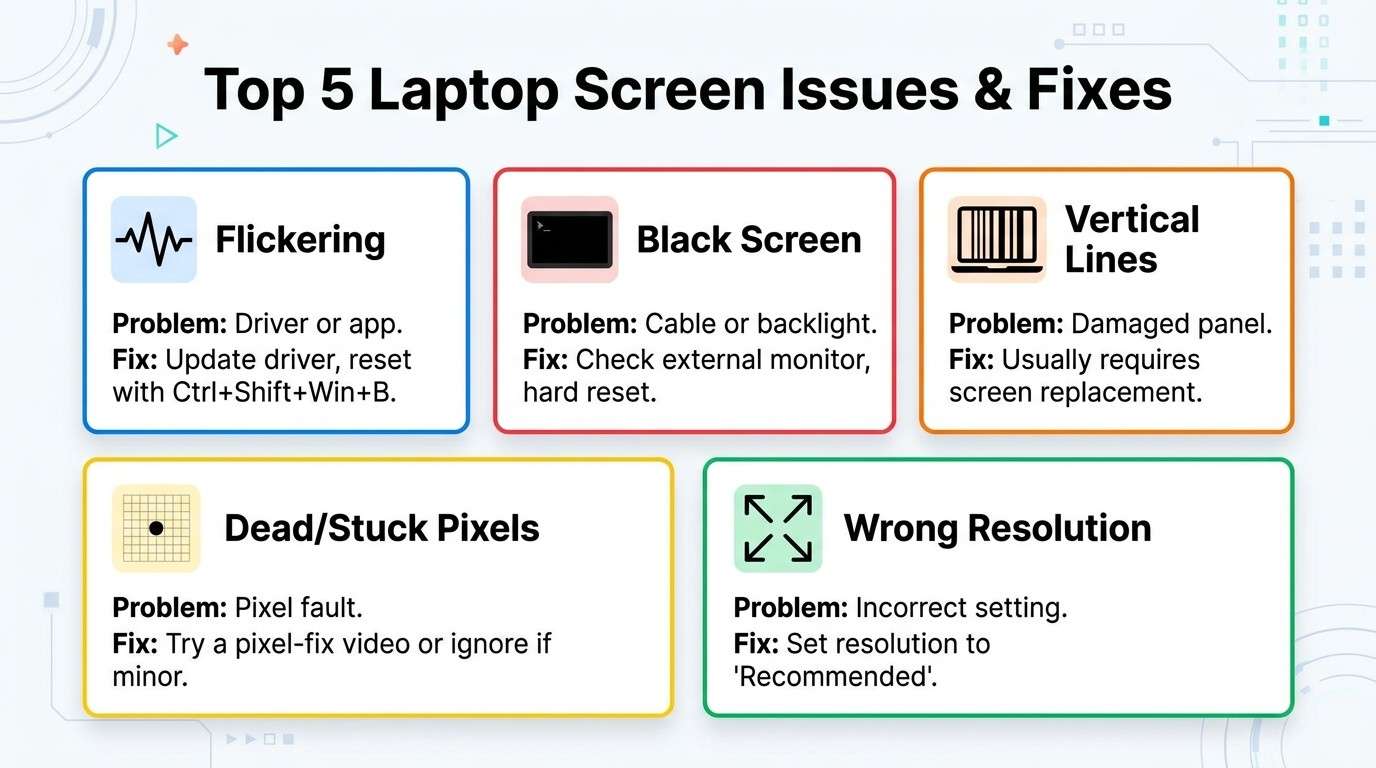
Laptop screen problems are one of the most stressful things that can happen to your computer, because when the screen fails, you cannot see anything the laptop is doing, even if the rest of it works perfectly. The good news is that most screen problems have a clear cause, and many of them can be fixed at home for free before you ever spend a single shilling on repair. This guide walks through every common screen problem, in simple sixth-grade English, so you can figure out what is wrong and what it will cost to fix in Kenya.
Laptop screen problems are usually caused by one of four things: a loose display cable, an outdated graphics driver, physical damage to the screen panel, or a failing backlight. Test with an external monitor first — if it works fine, the fault is in your screen or cable, not your graphics card, and most cases cost between Ksh 3,500 and Ksh 12,000 to repair.
📲 Not sure what is wrong with your screen? Send us a photo or video on WhatsApp and we will help you diagnose it for free.
Chat on WhatsApp1. Laptop Screen Flickering
Screen flashes, strobes, or jumps
Often free to fixFlickering usually means your display driver is out of date, conflicting with an app, or your refresh rate is set wrong. It is rarely the screen itself. Microsoft's own troubleshooting guide recommends a simple first test: open Task Manager while the screen flickers.
Try this first:
- Press Windows key + Ctrl + Shift + B to reset the graphics driver instantly.
- Open Task Manager (Ctrl + Shift + Esc). If Task Manager flickers too, update or roll back your display driver in Device Manager.
- If Task Manager stays steady while the rest of the screen flickers, an app (often antivirus or a browser) is the cause — close apps one by one to find it.
- Go to Settings > System > Display > Advanced display and try a different refresh rate.
- If flickering only happens when you move the lid, the display cable is loose — this needs a technician to reseat or replace it.
📖 Full driver-level walkthrough: Microsoft's official flickering guide.
2. Laptop Black Screen
Laptop is on but the screen shows nothing
Check before you panicA black screen with the laptop clearly powered on almost always means the screen is not receiving or displaying the signal — not that the laptop has died. Common causes are a frozen graphics driver, a disconnected cable, a drained battery combined with a faulty charging light, or the laptop being asleep with a stuck power button.
Step-by-step check:
- Hold the power button for 15 seconds to force a full shutdown, then restart.
- Plug in an external monitor. If it shows an image, your internal screen or its cable is the problem.
- Shine a torch very close to the screen at an angle — if you can faintly see icons, the backlight has failed but the panel still works.
- Remove the charger and battery (if removable) for 30 seconds, then reconnect and boot.
3. Laptop White Screen
Screen shows solid white or very bright glow
Usually needs a technicianA pure white screen is different from a black one — it usually points to a damaged LCD panel, a backlight driver stuck at full power, or a broken connection inside the screen itself. This is less commonly a software fault, though it is still worth a restart first in case it is a one-off graphics crash.
What to do:
- Restart the laptop once — if the white screen returns immediately every time, it is hardware.
- Test with an external monitor to confirm the laptop itself is working normally.
- If confirmed hardware, the panel or its cable usually needs replacing — this is a repair shop job.
4. Laptop Blue Screen (Screen Tint, Not BSOD)
Whole display has a blue tint or cast
Software-fixableIt is easy to confuse two different problems that both get called "blue screen." A blue tint over the whole display is usually a color calibration or Night Light setting issue and is simple to fix. This is separate from the Windows "Blue Screen of Death" (BSOD) crash with white error text, which is a system crash, not a screen fault — we cover that specific issue in our dedicated blue screen and restart guide.
For a blue color tint:
- Turn off Night Light in Settings > System > Display.
- Reset color calibration: Control Panel > Color Management > Advanced > Reset.
- Update your graphics driver — a corrupted driver can shift colors.
- Test on an external monitor to rule out a damaged color cable inside the screen.
5. Screen Has Vertical Lines
Straight lines running top to bottom
Almost always hardwareVertical lines almost always mean physical damage — either the LCD panel itself has a fault in its column driver, or the ribbon cable connecting the screen to the motherboard is damaged, often from a drop, pressure on the lid, or age. This is not something a software fix can solve.
What to do:
- Gently press near the hinge area — if the lines shift or disappear, it is a loose cable, which is a cheap fix.
- Connect an external monitor to confirm the graphics card itself is fine.
- If lines stay the same no matter what you do, the panel usually needs replacing.
6. Screen Has Horizontal Lines
Straight lines running left to right
Almost always hardwareHorizontal lines follow the same logic as vertical ones but point to a fault in the row driver of the panel or a damaged connector. If the lines appear or disappear as you open and close the lid at different angles, the display cable is loose rather than the panel being broken — a much cheaper fix.
What to do:
- Slowly move the lid through its full range and watch if the lines change.
- If lines change with angle: cable reseating, often Ksh 1,000–2,500 at a repair shop.
- If lines never change: panel replacement is usually required.
7. Dead Pixels Explained
Tiny black or bright dots that never change
Cannot be fixed at home reliablyA dead pixel is a single tiny point on your screen that never lights up, so it always looks black. A stuck pixel is different — it is frozen showing one color (often red, green, or blue) instead of changing with the picture. Dead pixels are permanent hardware faults; stuck pixels can sometimes be revived.
How to check and try to fix:
- Search "dead pixel test" online and open a full-screen solid color page to spot dots clearly.
- For a stuck pixel only, gently massage the spot with a soft cloth over a closed eyelid-style pressure while the screen shows black, then release — this works occasionally.
- A few dead pixels rarely justify a full screen replacement unless they sit in your direct line of sight.
- Ask any seller for their dead-pixel policy in writing before buying a laptop.
8. Brightness Not Working
Brightness keys do nothing, or screen is stuck dim
Usually a driver or setting fixBrightness controls fail for software reasons far more often than hardware ones. The two biggest culprits are a missing or outdated display/graphics driver, and Windows' Adaptive Brightness feature reacting to a light sensor rather than your key presses.
Try in this order:
- Turn off adaptive brightness: Settings > System > Display > uncheck "Change brightness automatically."
- Update your graphics driver via Device Manager > Display adapters.
- Check if the function (Fn) lock key is toggled, which can block brightness shortcuts.
- If the screen is dim even at 100% brightness in settings, the backlight itself may be failing — this needs a technician.
9. Screen Keeps Going Black
Screen randomly goes dark, then comes back
Check power settings firstIf your screen keeps going black for a moment and returning, this is different from a full black-screen freeze. It is commonly caused by aggressive power-saving settings turning the display off, a loose cable causing brief disconnects, or overheating that makes the graphics card temporarily cut the signal.
What to check:
- Go to Settings > System > Power & battery and increase the "Screen turns off after" time.
- Check whether it happens more when the laptop is hot — see our overheating guide if this matches.
- Note if it happens only when you touch or move the lid, which points to a loose display cable.
- Update your graphics driver, since crashes can briefly blank the screen before recovering.
10. Laptop Screen Looks Blurry
Text and icons look soft, fuzzy, or out of focus
Almost always a settings fixBlurriness is very rarely a broken screen. In almost every case, it is caused by running the display at the wrong resolution or Windows scaling text incorrectly for your screen size. A genuinely damaged panel causing blur is uncommon.
Fix it in two steps:
- Right-click the desktop > Display settings > set resolution to the value marked "(Recommended)."
- Adjust the "Scale" percentage under the same menu until text looks sharp — 100%, 125%, or 150% depending on screen size.
- Clean the screen with a dry microfiber cloth — smudges and dust are an easy blur cause people miss.
11. Wrong Screen Resolution
Everything looks too big, too small, or stretched
Free, 2-minute fixEvery laptop screen has one "native" resolution that looks sharpest. If Windows is set to a different resolution, everything looks stretched, blurry, or oddly sized. This usually happens after a driver update, a Windows update, or connecting and disconnecting an external monitor.
How to fix:
- Right-click desktop > Display settings > Display resolution > choose the option labeled "Recommended."
- If no resolution is marked recommended, your graphics driver needs updating first.
- Restart after changing the driver, then recheck the resolution menu.
12. Screen Color Problems
Colors look washed out, inverted, or wrong
Depends on the symptomColor problems have several distinct causes. Dull or washed-out color is usually a display profile or Night Light setting. Fully inverted colors (like a photo negative) are almost always an accessibility setting turned on by accident. A screen missing one color channel entirely, so everything looks tinted, points to a damaged display cable.
Match the fix to the symptom:
- Inverted colors: Press Ctrl + Windows key + C to toggle color filters off, or check Settings > Accessibility > Color filters.
- Dull colors: Turn off Night Light and reset the color profile in Color Management.
- One color missing/tinted: Test on an external monitor — if normal there, the internal display cable needs a technician.
13. External Monitor Not Detected
Plugged in a second screen but nothing shows
Usually a connection or driver fixWhen Windows will not detect an external monitor, the fault is usually in the connection method, the display settings, or an outdated graphics driver — not a broken laptop screen.
Checklist:
- Press Windows key + P and choose "Extend" or "Duplicate."
- Try a different cable or port — HDMI and USB-C ports fail independently of each other.
- Right-click desktop > Display settings > click "Detect" under Multiple displays.
- Update your graphics driver, since outdated ones often fail to recognize new displays.
14. HDMI Display Not Working
HDMI port connected but no picture
Test the basics firstHDMI problems are almost always about the connection path — the cable, the port, or the input source selected on the monitor — rather than the laptop's internal screen. A loose or damaged HDMI port on an older laptop is also a common physical cause.
Work through this order:
- Confirm the monitor is set to the correct HDMI input source using its own remote or buttons.
- Try a different HDMI cable — cheap cables fail more than people expect.
- Wiggle the cable gently at the laptop end while watching the screen — if the picture flickers, the port itself needs repair.
- Update your graphics driver and restart with the cable already connected.
15. Screen Replacement Cost in Kenya
When a screen problem turns out to be hardware and not software, replacement is usually the final step. Prices in Kenya depend mainly on panel type, resolution, and whether the screen is touch-enabled. These are typical Nairobi market ranges as of 2026 — always confirm with a technician using your exact model number, since panels are not interchangeable between models.
| Screen / Problem Type | Typical Cause | Est. Cost (Ksh) |
|---|---|---|
| Standard HD panel (1366×768) | Cracked or dead panel | 3,500 – 6,000 |
| Full HD panel (1920×1080) | Cracked or dead panel | 6,000 – 12,000 |
| Touchscreen panel | Cracked glass or digitizer fault | 12,000 – 25,000 |
| High-res / 4K panel | Damaged panel, premium ultrabooks | 15,000 – 30,000 |
| Display cable replacement | Lines, flicker tied to lid angle | 1,000 – 2,500 |
| Backlight / inverter repair | Black screen with faint image visible | 2,000 – 5,000 |
| HDMI port repair | Loose or damaged external port | 1,500 – 3,500 |
| Driver / software diagnosis | Flicker, resolution, color, brightness issues | Often free – 1,000 |
📲 Get an exact quote for your laptop model — send us your model number and the problem on WhatsApp.
Get a Free QuoteFrequently Asked Questions
What causes laptop screen problems the most?
Most laptop screen problems come from four sources: a loose or damaged display cable, a failing graphics driver, physical damage to the panel from drops or pressure, or a dying backlight or inverter. Loose cables and driver issues are the cheapest to fix and are often free.
Can a flickering laptop screen be fixed without replacing it?
Yes, in most cases. Flickering is usually a display driver or refresh rate issue, not a broken panel. Updating or rolling back the graphics driver fixes it for free in the majority of cases before any hardware is touched.
How do I know if my laptop screen or the graphics card is the problem?
Connect an external monitor using HDMI. If the external screen displays correctly, the laptop's own panel or its cable is at fault. If the same fault appears on the external monitor too, the problem is the graphics card or motherboard, not the screen.
How much does laptop screen replacement cost in Kenya?
A standard HD laptop screen replacement in Kenya typically costs between Ksh 3,500 and Ksh 7,000. Full HD panels run Ksh 6,000 to Ksh 12,000, and touchscreen or high-resolution panels can cost Ksh 12,000 to Ksh 25,000 depending on the laptop model.
Are dead pixels covered under warranty in Kenya?
It depends on the seller and the number of dead pixels. Many manufacturers only replace a panel if there are more than five dead pixels clustered in one area. Always ask your seller about their dead-pixel policy in writing before buying.