This laptop maintenance guide is for anyone in Kenya who wants their laptop to last longer, run cooler, and cost less in repairs. Dust, heat, poor charging habits, and rough handling are the biggest reasons laptops break down early, and almost all of them are avoidable with a few simple habits. This guide walks through every part of laptop care in plain, simple English, from cleaning and battery health to storage, travel, and the warning signs that mean it is time to see a professional.
A good laptop maintenance guide covers five things: clean the vents and keyboard monthly, keep the laptop between 20% and 80% battery, avoid using it on soft surfaces that block airflow, store it in a cool dry place, and run software updates weekly. Following these steps can add years to a laptop's life and prevent most common repairs.
1. How to Clean a Laptop Safely
Cleaning a laptop the wrong way can cause more damage than the dirt itself. Liquid inside the keyboard, scratches on the screen, or static electricity on the motherboard can all end a laptop's life in seconds. Here is how to do it safely.
Before you start
- Turn off the laptop completely and unplug the charger.
- Remove the battery if it is removable.
- Never spray liquid directly onto the laptop. Spray a cloth instead.
Cleaning the screen
Wipe gently with a dry microfiber cloth in one direction. For smudges, lightly dampen the cloth with a 50/50 mix of distilled water and white vinegar, or a dedicated screen cleaner. Never use glass cleaner, alcohol, or paper towels, since these can strip the anti-glare coating.
Cleaning the keyboard
Turn the laptop upside down and gently shake it to loosen crumbs. Use a can of compressed air between the keys, holding it at an angle, then wipe the keys with a slightly damp microfiber cloth. A small soft brush works well for the gaps between keys.
Cleaning the vents and fan
Use compressed air in short bursts to blow dust out of the side and bottom vents. Hold the fan blades steady with a toothpick or cotton swab while spraying so they do not spin too fast and damage the motor.
2. How Often Should You Service a Laptop?
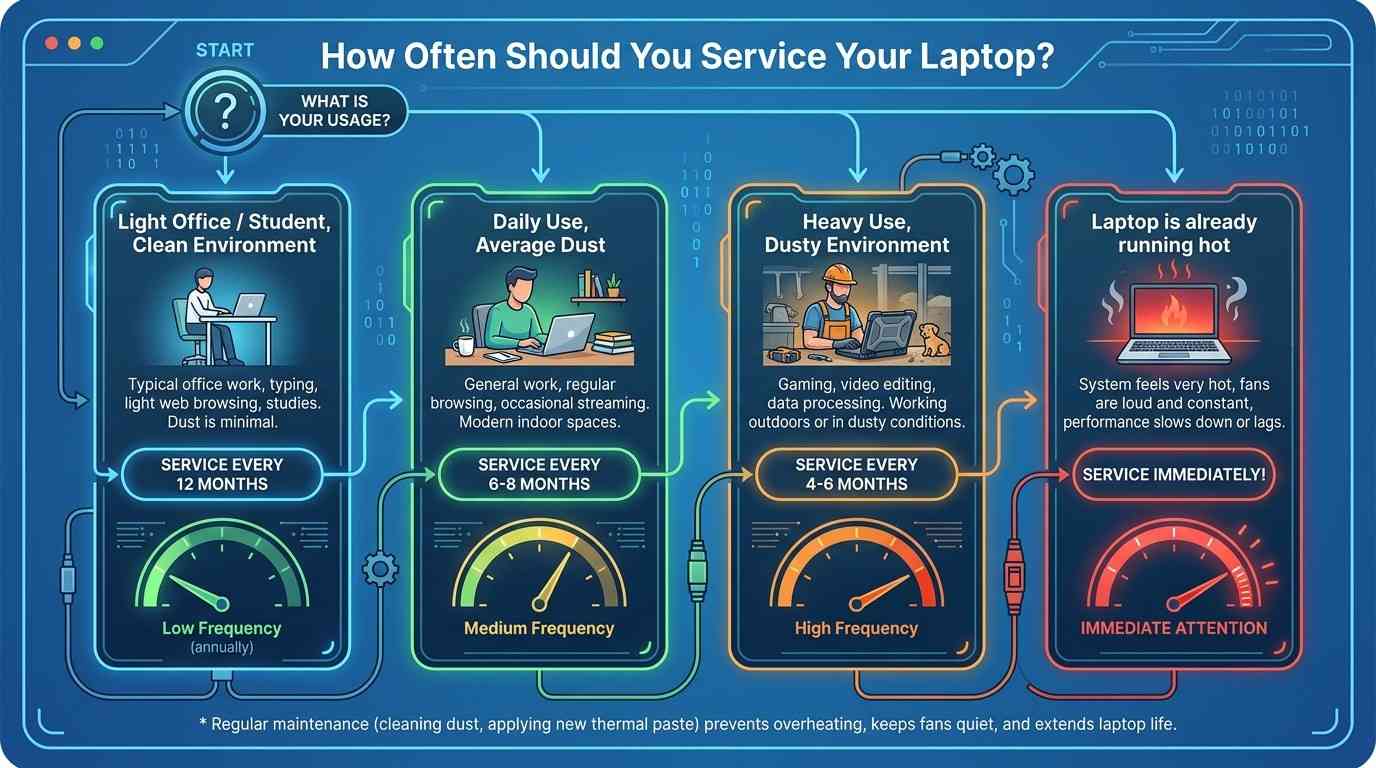
Most laptops used daily in Kenya's dusty conditions should get a full internal service, including a fan and heatsink clean-up, every 6 to 12 months. Light users in clean, air-conditioned offices can often stretch this to once a year. Heavy users, gamers, and anyone working near construction dust or in matatu-heavy, dusty towns should aim for every 4 to 6 months.
| Usage type | Recommended service interval |
|---|---|
| Light office or student use, clean environment | Every 12 months |
| Daily use, average dust exposure | Every 6–8 months |
| Heavy use, gaming, video editing, dusty environment | Every 4–6 months |
| Laptop already running hot or loud | As soon as possible |
A professional service usually includes opening the base, cleaning the fan and heatsink, replacing thermal paste, and checking the battery health. Expect to pay roughly Ksh 1,500 to Ksh 3,500 for a full clean and thermal paste change at a reputable repair shop in Nairobi.
3. Best Ways to Extend Laptop Lifespan
A well-maintained business laptop can easily last 5 to 8 years. These habits make the biggest difference.
- Keep it cool. Heat is the number one killer of laptop components over time.
- Charge it smart. Avoid keeping it plugged in at 100% for long periods.
- Update software regularly. Updates fix bugs that can cause crashes and slowdowns.
- Use a surge protector. Power surges are common in Kenya and can silently damage the charging circuit.
- Carry it properly. A padded sleeve or bag prevents flex damage to the screen and hinges.
- Free up storage space. Keeping at least 15–20% of the drive free helps it run smoothly.
- Avoid eating or drinking near it. Spills are one of the leading causes of sudden laptop death.
4. How to Prevent Overheating
Overheating shortens the life of the processor, battery, and motherboard, and it is almost always preventable. Read our full laptop overheating causes and fixes guide for a deep dive, but the basics are simple.
- Always use the laptop on a hard, flat surface. Beds, sofas, and laps block the intake vents.
- Use a cooling pad if the laptop runs hot during long sessions.
- Close background programs and browser tabs you are not using.
- Clean the vents every 1–2 months in dusty environments.
- Replace old, dried-out thermal paste every 2–3 years on heavily used laptops.
- Keep the laptop out of direct sunlight and hot cars.
5. How to Protect Your Laptop Battery
Lithium-ion batteries, the type used in almost every modern laptop, degrade fastest when kept at very high or very low charge for long periods, and when exposed to heat. For a deeper look at battery issues, see our guide on common laptop battery problems and fixes.
- Try to keep the battery charge between 20% and 80% for daily use.
- Avoid leaving the laptop plugged in and fully charged for days at a time.
- Let the battery run down to around 20-30% occasionally rather than always topping up from 95%.
- Keep the laptop cool, since heat is one of the fastest ways to age a battery.
- If you are storing the laptop for weeks, charge it to around 50% first, not 0% or 100%.
- Use the original charger or a certified replacement, never a cheap unbranded one.
6. How to Store a Laptop Properly
Whether you are storing a laptop for a week or for months, a few precautions protect it from damage.
- Charge the battery to around 50% before long-term storage.
- Turn the laptop off completely rather than leaving it in sleep mode.
- Store it in a padded sleeve or case, in a cool, dry room away from direct sunlight.
- Avoid storing it in a car boot, near a window, or anywhere temperatures swing widely.
- If stored for more than 3 months, power it on and charge it to 50% every couple of months.
7. How to Travel With a Laptop Safely
Matatu rides, boda bodas, and airport security lines all put a laptop at risk. These habits reduce the chances of damage on the move.
- Always use a padded laptop sleeve inside your bag, even if the bag itself looks sturdy.
- Power the laptop down fully before travel rather than leaving it asleep, especially on rough roads.
- Carry it in a bag with a dedicated laptop compartment rather than tossing it in with other items.
- At airport security, keep it in the sleeve until asked to remove it, and place it flat, screen-side up, in the tray.
- Avoid checking a laptop into aircraft hold luggage. Always carry it on board.
- Keep it away from direct sun on the dashboard or back seat of a car.
8. How to Prevent Dust Damage
Dust is one of the biggest threats to laptops in Kenya, especially in dry, dusty towns and during the dry season. Dust clogs the fan, coats the heatsink, and traps heat inside the laptop, which leads to overheating and shutdowns.
- Keep the laptop away from open windows, dusty floors, and construction areas.
- Use a laptop sleeve or dust cover when it is not in use.
- Clean the vents with compressed air every 4–8 weeks if you live or work in a dusty area.
- Avoid using the laptop directly on carpets, blankets, or rugs, which shed fibres into the vents.
- Keep windows and doors closed when using the laptop during windy or dusty weather.
9. Best Laptop Cleaning Tools
A small, inexpensive cleaning kit makes regular maintenance easy. Here are the essentials worth keeping at home or in the office.
Compressed Air Can
Blows dust out of vents, fans, and between keys without touching internal parts.
Microfiber Cloths
Safe for screens and keyboards. Keep a dedicated one just for the laptop.
Soft-Bristle Brush
Reaches between keys and along hinges without scratching surfaces.
Screen Cleaning Solution
An alcohol-free, ammonia-free spray formulated for laptop and monitor screens.
Cooling Pad
Adds extra airflow underneath the laptop during long or demanding sessions.
USB Mini Vacuum
Gently suctions crumbs and dust from the keyboard without loose bristles.
10. Monthly Laptop Maintenance Checklist
Use this simple checklist once a month to keep your laptop running well between full services.
| Task | Why it matters |
|---|---|
| Wipe screen and keyboard with a microfiber cloth | Removes dust, oils, and grime that build up daily |
| Blow out vents with compressed air | Prevents dust build-up that causes overheating |
| Check for pending software and driver updates | Fixes bugs and closes security gaps |
| Restart the laptop instead of only sleeping it | Clears memory leaks and background clutter |
| Delete unused files and empty the recycle bin | Keeps free storage space healthy |
| Run a malware or antivirus scan | Catches threats that slow the system down |
| Check battery charge habits from the past month | Confirms you are staying within the 20–80% range |
| Inspect the charging cable and port for wear | Catches frayed cables before they fail completely |
11. Signs Your Laptop Needs Professional Servicing
Some problems go beyond a home clean-up and need a trained technician. Watch for these warning signs.
- The fan runs loudly and constantly, even during light tasks.
- The laptop shuts down unexpectedly when it gets warm.
- The bottom of the laptop is hot to the touch within minutes of use.
- Battery drains far faster than it used to, or does not hold charge at all.
- The laptop is significantly slower even after basic clean-up steps.
- Strange clicking, grinding, or buzzing sounds from inside the casing.
- The screen flickers, has lines, or shows dead pixels.
- It randomly restarts or shows a blue screen, especially when moved.
For symptom-specific fixes, see our guides on fixing a slow laptop and blue screen crashes when the laptop is moved. If several of these signs apply, it is time for a full diagnostic rather than another home fix.
12. Common Laptop Habits That Shorten Its Lifespan
Many laptop problems are caused by everyday habits that seem harmless. Avoiding these can add years to a laptop's working life.
- Using the laptop on a bed, sofa, or lap, which blocks the vents and traps heat.
- Leaving it plugged in at 100% charge for days or weeks at a time.
- Closing the lid on a dirty keyboard, which grinds dust into the screen.
- Eating or drinking near an open laptop.
- Carrying it without a sleeve or case in a bag full of other items.
- Ignoring software updates for months at a time.
- Letting the battery drain to 0% repeatedly before charging.
- Never cleaning the vents, especially in dusty environments.
- Unplugging the charger by yanking the cable instead of the plug.
Need a laptop clean-up, thermal paste change, or a full diagnostic in Nairobi?
Message us on WhatsApp and we will point you to the right service or help you find a reliable replacement.
📲 Chat With Us on WhatsAppFrequently Asked Questions
How often should I clean my laptop?
Wipe the screen and keyboard weekly, and clean the internal vents with compressed air every 1–2 months if you live in a dusty area, or every 3–4 months in a cleaner environment.
Is it bad to leave my laptop plugged in all the time?
Keeping it plugged in at 100% for long periods slowly ages the battery. It is better to unplug once it reaches around 80% and let it run down closer to 20% before charging again.
Can dust actually damage a laptop?
Yes. Dust clogs the fan and heatsink, which traps heat inside the laptop. Over time this causes overheating, random shutdowns, and permanent damage to the processor and other components.
How do I know if my laptop needs new thermal paste?
If the fan runs loudly, the laptop feels hot even during light use, and it is more than 2–3 years old with no prior cleaning, dried-out thermal paste is a likely cause and a technician can replace it.
What is the ideal laptop battery charge range?
Most battery experts recommend keeping the charge between 20% and 80% for daily use, since staying at very high or very low charge for long periods speeds up battery wear.
Should I turn my laptop off every night?
Shutting down fully at least a few times a week, instead of only using sleep mode, clears memory and lets updates install properly, which keeps the system running smoothly.